
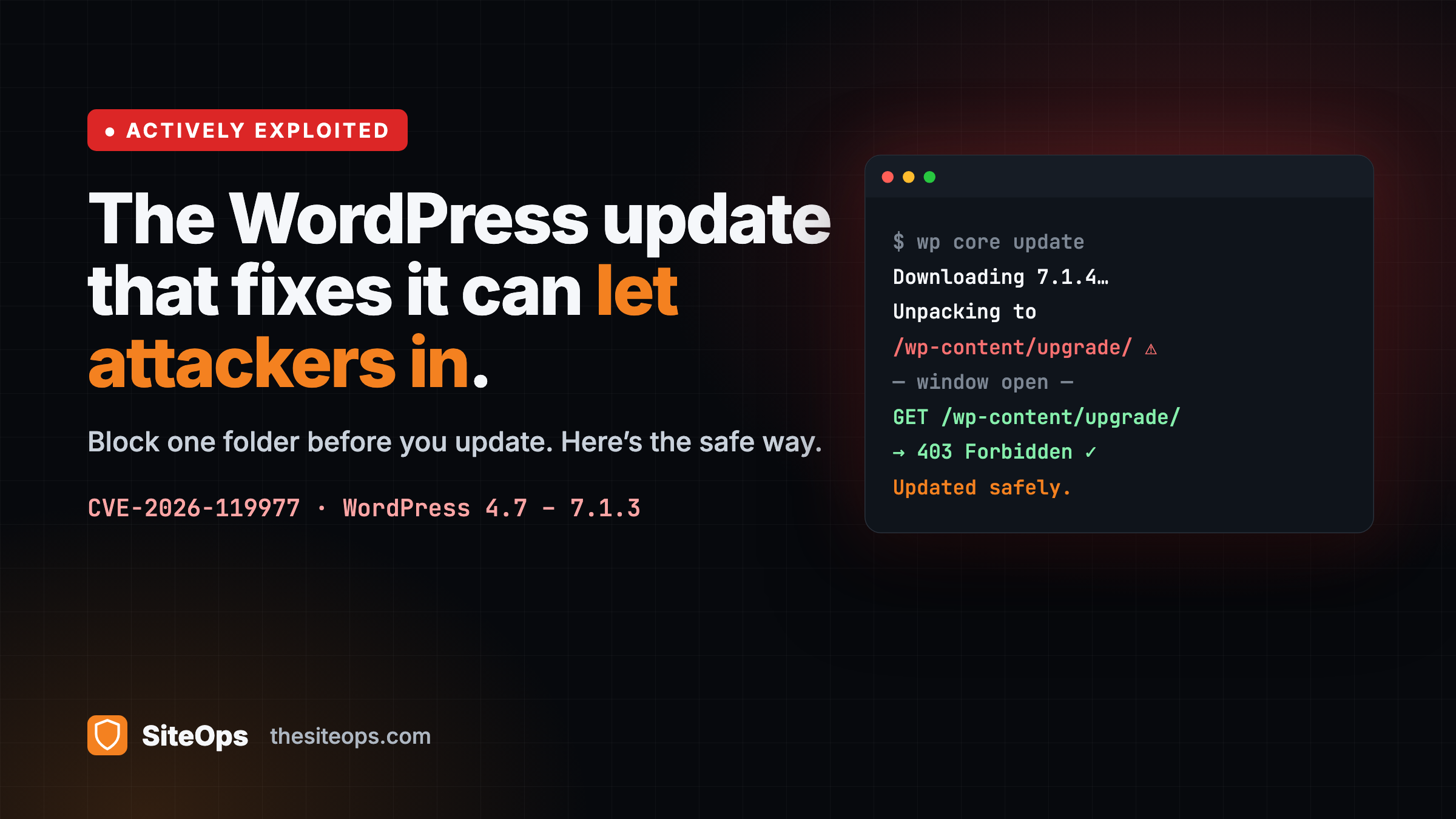
The WordPress update that fixes CVE-2026-119977 can let attackers in. Here’s how to update safely.
Every WordPress site from version 4.7 to 7.1.3 is exposed to an actively exploited flaw, CVE-2026-119977. The fix is out: WordPress 7.1.4. So the advice should be simple. Update.
There is a catch. On a vulnerable site, the update to 7.1.4 is unpacked by the old, vulnerable updater. That means the act of installing the fix opens the attack window one last time.
Here is what the flaw does, the one step most people skip before updating, and how agencies can find every exposed client site in minutes instead of days.
In short: block web access to /wp-content/upgrade/ in your server config, check it returns 403, then update. Not sure which sites are affected? Run a free WordPress check on any site in about 10 seconds.
What is CVE-2026-119977?
CVE-2026-119977 is a race condition in the way WordPress core updates itself. During a full core update, WordPress unpacks the new version into a predictable folder under /wp-content/upgrade/. For a few seconds, that folder holds a working copy of the WordPress installer that anyone on the internet can reach.
An attacker who hits it in that window, with no password, can run the installer against a database they control, sign in as an administrator and run their own PHP code on your server.
- Affected: every WordPress version from 4.7 to 7.1.3.
- Fixed in: 7.1.4, with fixes back-ported to older branches (table below).
- Actively exploited: the US cybersecurity agency CISA added it to its Known Exploited Vulnerabilities catalogue on 3 November 2026.
- Under attack now: Wordfence reports that its firewall has blocked more than 240,000 exploit attempts against this flaw.
How serious is it? Ratings differ. Wordfence scores it 8.1 (High); WordPress rates it Low because the window lasts only seconds. Both are true: it is hard to hit, but attackers are trying at scale, and it only has to work once.
Why the fix itself is risky
Normally, installing a security update closes the hole. Here, the hole is in the updater, and the updater that runs is the one already on your site.
So when a site on 7.1.3 updates to 7.1.4, the old code unpacks the new release into the exposed folder, exactly as before. Researchers at Picus Security and Rescana both point out that this last update reopens the window. Every update after 7.1.4 is safe; the one that gets you there is not.
Wordfence’s advice matches: block web access to the upgrade folder before you install the fix.
How to update WordPress safely, in 4 steps
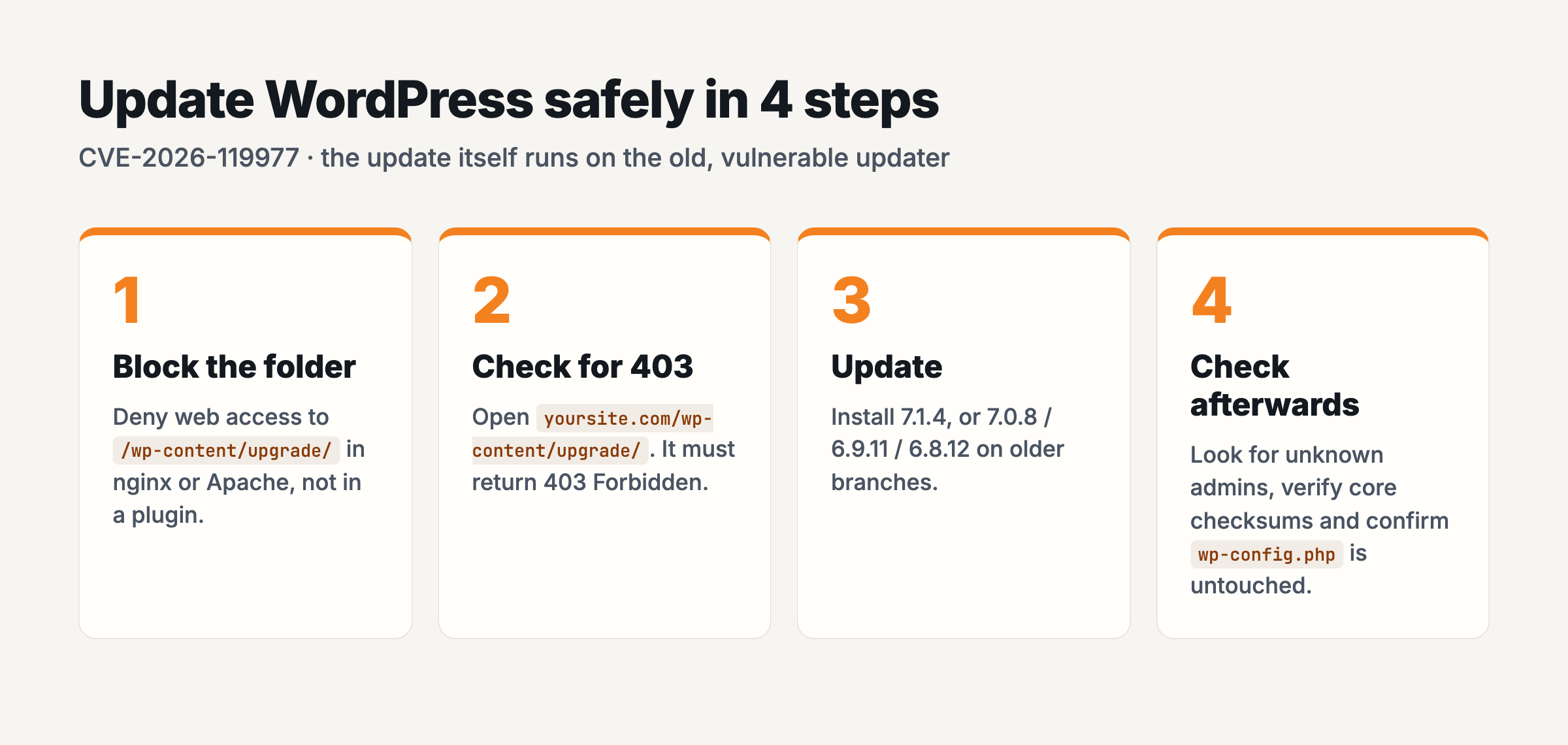
Step 1. Block /wp-content/upgrade/ in your server config
Add one rule to your web server. Blocking the folder does not break updates: WordPress writes to it through the file system, not over the web.
nginx (inside your site’s server block):
location ^~ /wp-content/upgrade/ {
    deny all;
}
Apache (in your main .htaccess, above the # BEGIN WordPress block):
RedirectMatch 403 ^/wp-content/upgrade/Two mistakes to avoid: a security plugin cannot block this, because the request goes straight to a PHP file and never loads WordPress. And a .htaccess file placed inside the upgrade folder will not survive: the old updater empties that folder before it unpacks.
Step 2. Check that the folder returns 403
Open https://yoursite.com/wp-content/upgrade/ in a browser, or run:
curl -I https://yoursite.com/wp-content/upgrade/You want 403 Forbidden. Anything else means the rule is not active yet. Do not update until it is.
Step 3. Update to the fixed version
Update from the dashboard as usual. If you are on an older branch, these are the first safe versions:
| Your branch | Update to |
|---|---|
| 7.1.x | 7.1.4 |
| 7.0.x | 7.0.8 |
| 6.9.x | 6.9.11 |
| 6.8.x | 6.8.12 |
| 6.7.x / 6.6.x | 6.7.11 / 6.6.11 |
| 6.5.x / 6.4.x | 6.5.14 / 6.4.14 |
| 4.7 to 6.3 | The latest release of your branch (see the WordPress advisory) |
| 4.6 and older | No fix. Plan a full upgrade. |
Using WP-CLI? wp core update uses the same updater and the same folder, so it needs the same block first. The only update that avoids the folder entirely is a manual one: unpack the release outside your web root and copy the files across.
Step 4. Check the site afterwards
Because the window opened at least once, check each updated site for signs that someone got in:
- Unknown administrators:
wp user list --role=administrator - Changed core files:
wp core verify-checksums - Your database settings: the DB_HOST and DB_NAME in wp-config.php must still point at your own database.
- Leftover installer files: anything under
/wp-content/upgrade/other than index.php deserves a look. - Your access logs: successful (200) requests to setup-config.php or install.php under /wp-content/upgrade/ around the time of an update.
If wp-config.php points at a database you do not recognise, treat the site as compromised: take it offline, restore a backup from before the update and change every password.
The real problem for agencies: which sites are still exposed?
If you run one website, the steps above take ten minutes. If you look after 40 client sites, the hard part is not the fix. It is knowing which of the 40 are still on 7.1.3, which update on their own, and which one a client quietly rolled back.
That is the problem we built SiteOps to solve.
Start with a free check
Our free WordPress check shows any site’s WordPress version, its known core vulnerabilities, any that are on CISA’s actively exploited list, and its SSL status, in about 10 seconds. No sign-up. For sites affected by CVE-2026-119977, it also shows the “block the folder first” step.
Then let SiteOps watch every site for you
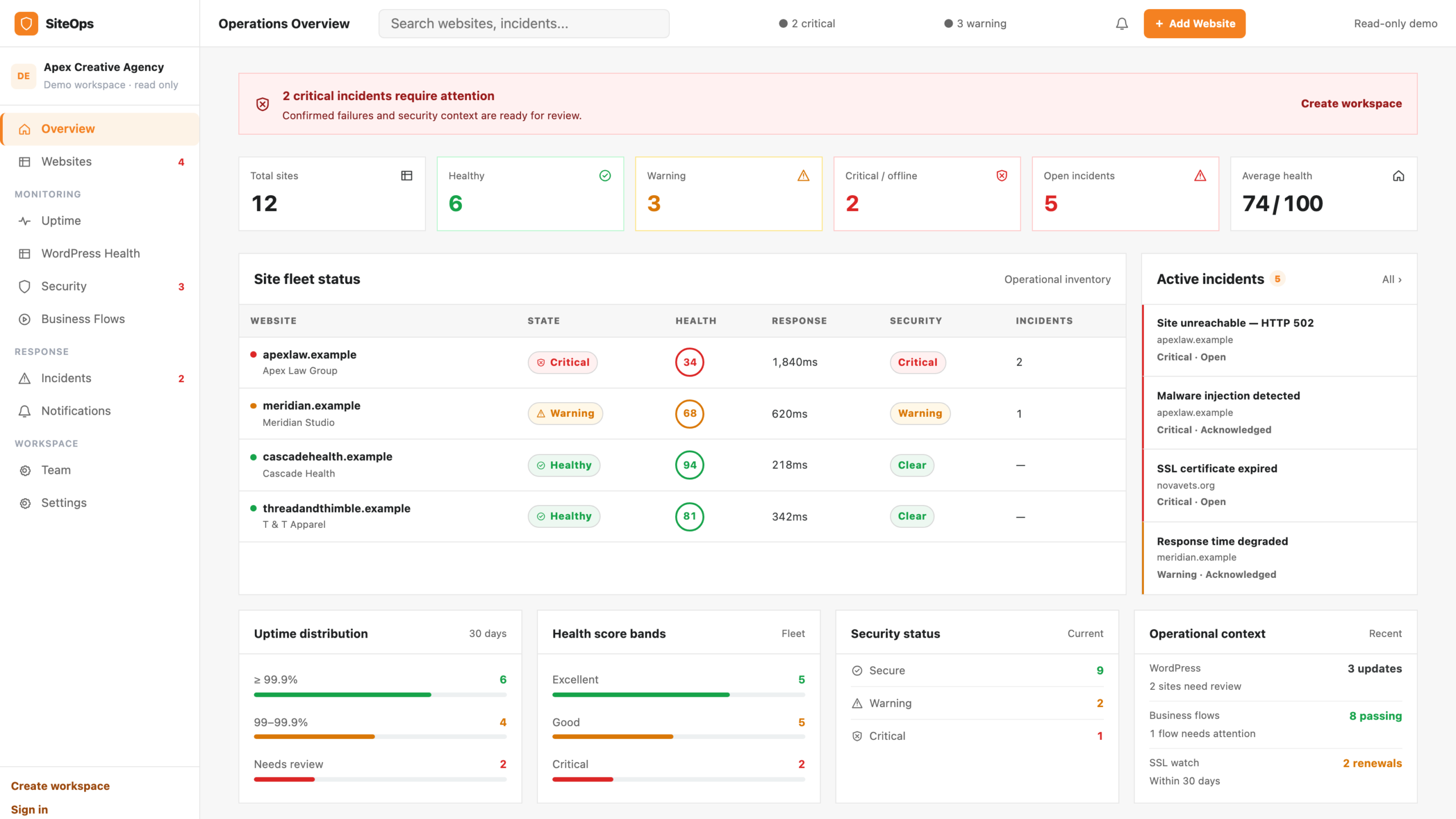
SiteOps puts every client website on one screen and checks them around the clock:
- Vulnerability alerts that match each site’s WordPress core, plugins and themes against 43,000+ known advisories, with actively exploited flaws like this one flagged first.
- Uptime, response time and SSL checked every few minutes.
- Real-browser checks that your checkout and contact forms actually work, not just load.
- Incidents with email and Slack alerts, so you hear about a problem before your client does.
Founding offer: SiteOps plans start at $29 a month for 10 sites (see pricing). Every plan comes with a 14-day free trial, and nothing is charged today. The first 50 agencies get 30% off for life with code FOUNDING30. Start your free trial.
Frequently asked questions
Sources
- CISA Known Exploited Vulnerabilities catalogue (CVE-2026-119977 added 3 November 2026)
- Picus Security: When updating WordPress becomes the vulnerability
- Rescana: WordPress core 7.1.4 fixes an upgrade-window race
- Wordfence Intelligence: vulnerability advisory and exploit-attempt figures for CVE-2026-119977
Know before your client calls. Check your WordPress site free →
